Last Updated on April 26, 2026 by Kravelv Spiegel
💡Key Takeaways:
Scheduling and automation are the highest-value features on any smart plug for heavy appliances. A simple daily schedule on a space heater, dehumidifier, or window AC unit can eliminate 1 to 3 hours of unnecessary runtime per day, translating to $50 to $150 in annual savings per appliance.
This guide covers every scheduling and automation type available on 15A smart plugs, how to set them up across Alexa, Google Home, and the Kasa and Govee apps, and the most effective ready-to-use schedule templates for the heavy appliances most commonly plugged into smart outlets.
Why scheduling matters more for heavy appliances than light ones
A smart plug schedule on a lamp saves pennies. A smart plug schedule on a space heater saves real money. The difference comes down to wattage. A lamp draws 10 to 60 watts. A space heater draws 750 to 1,500 watts. One hour of unnecessary runtime on a space heater costs roughly 12 to 18 cents at average US electricity rates. Multiply that by a 30-day month and the math becomes compelling quickly.
Heavy appliances are also the most likely to be left running unintentionally. A lamp left on is easy to notice. A space heater running in a back bedroom, a dehumidifier cycling in the basement, or a window AC unit cooling an empty room are all invisible until the electricity bill arrives. Scheduling transforms these appliances from passive energy drains into controlled, optimized tools that run only when needed.
Beyond cost, scheduling a heavy appliance adds a safety layer that the appliance itself does not provide. Most portable space heaters have no auto-shutoff beyond a tip-over sensor. A scheduled smart plug that cuts power at bedtime or when you leave the house closes that gap entirely.
The four types of smart plug automation
Understanding the four distinct automation types available on most 15A smart plugs helps you choose the right tool for each appliance and scenario.
1. Fixed Daily Schedules
A fixed schedule turns the plug on and off at the same times every day, or on selected days of the week. This is the most straightforward automation type and the right choice for appliances with predictable use patterns.
Example: A space heater in a home office set to turn on at 8:00 AM and off at 6:00 PM, Monday through Friday. The heater is never running during evenings, nights, or weekends when the office is empty.
Most apps support up to 15 separate on/off schedule entries per day, allowing precise multi-period control for appliances with complex use patterns.
2. Countdown Timers
A countdown timer cuts power after a set duration regardless of when the appliance was turned on. Unlike a fixed schedule, a timer starts counting from the moment the plug is activated.
Example: Turn on a portable space heater manually, set a 90-minute countdown timer. The heater shuts off automatically after 90 minutes whether you remember to turn it off or not. This is the most practical safety feature for unattended heating.
Countdown timers are available in all major smart plug apps including Kasa, Govee Home, and BN-HUB, as well as through Alexa and Google Home routines.
3. Geofencing (Location-Based Automation)
Geofencing uses your smartphone’s GPS to trigger plug actions based on your location. When your phone crosses a defined boundary around your home, the plug turns on or off automatically.
Example: Dehumidifier turns off when you leave the house, turns back on when you arrive home. No manual action required.
Geofencing works through platforms like Google Home and Amazon Alexa, which execute location-triggered automation routines alongside your existing voice commands and daily schedules. The Kasa app also supports geofencing natively for Kasa plugs without requiring a third-party platform.
Geofencing is best for appliances you want running only when someone is home, such as space heaters, portable fans, and air purifiers. It is not recommended for dehumidifiers or appliances that serve a purpose even when the house is empty.
4. Conditional and Cross-Device Routines
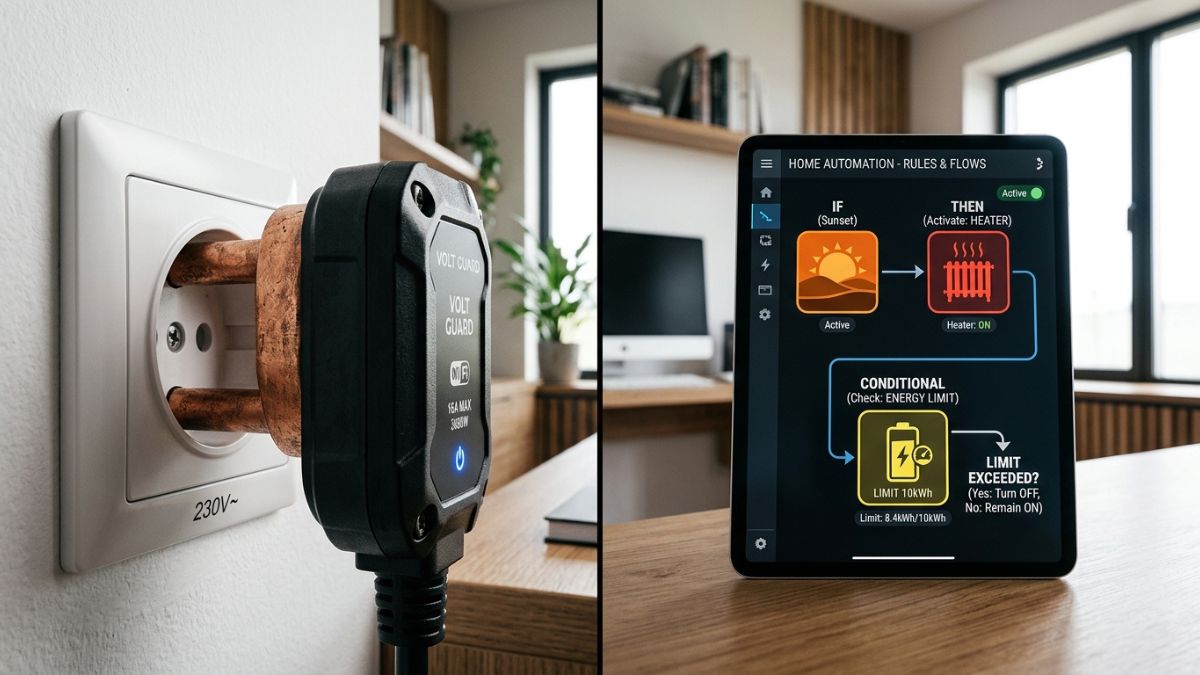
The most advanced automation type triggers plug actions based on conditions rather than time, such as when another smart device changes state, when an energy threshold is reached, or when a voice command fires a multi-device routine.
Example: An Alexa routine called “Good Night” that simultaneously turns off the living room lamp, cuts power to the entertainment center smart plug, and activates a 30-minute countdown timer on the bedroom space heater.
IFTTT’s free tier lets you build basic applets connecting services your devices already support, including weather data, calendar events, and location triggers, to your existing smart home gear. For heavy appliance users, a useful IFTTT example is triggering a dehumidifier to run when local outdoor humidity exceeds a set threshold, using weather data as the input.
How to set up schedules: Platform by platform
Setting a schedule in the Kasa App (KP115 and EP25)
- Open the Kasa app and select your plug from the device list.
- Tap “Schedule” on the device control screen.
- Tap the “+” icon to add a new schedule entry.
- Select “On” or “Off,” set the time, and choose which days of the week apply.
- Repeat for the paired on or off action.
- Tap “Save.” The schedule syncs to the plug and runs locally even if your phone is offline.
The Kasa app supports up to 28 to 31 schedule entries per device. For appliances with multiple daily run periods, such as a dehumidifier running morning and evening but not overnight, multiple entries cover each period independently.
Setting a Schedule in the Govee Home App
- Open the Govee Home app and tap on your smart plug.
- Tap the clock icon or “Schedule” tab.
- Select “Add Schedule,” choose on or off, set the time and repeat days.
- Save. Schedules sync to the device and run without an active internet connection once stored.
The Govee Home app also supports a “Timer” function separate from the schedule, which sets a fixed countdown from the current moment.
Setting a Schedule via Amazon Alexa Routines
To set a schedule for a smart plug through Alexa: open the Amazon Alexa app, tap the Devices icon, find and select your plug, then navigate to the Routines section in the app to configure time-based triggers.
Alexa Routines offer more flexibility than basic app schedules because they can combine multiple actions and conditions. A single routine can control multiple plugs simultaneously, add voice announcements, and include conditional logic.
- Open the Alexa app and tap “More,” then “Routines.”
- Tap “+” to create a new routine.
- Under “When this happens,” select “Schedule” and set your time and repeat days.
- Under “Add action,” select “Smart Home,” then “Control Device,” then select your plug.
- Choose “Turn On” or “Turn Off” and save.
Setting a Schedule via Google Home Routines
- Open the Google Home app and tap “Routines.”
- Tap “+” to create a new routine.
- Under “Starters,” select “Time of day” and set your schedule.
- Under “Actions,” tap “Control home devices” and select your smart plug.
- Choose the desired state and save.
Google Home routines support multiple devices per routine, making them efficient for “leave the house” scenarios that turn off several heavy appliances simultaneously.
Ready-to-use schedule templates for heavy appliances
These templates are built for the appliances most commonly connected to 15A heavy-duty smart plugs. Copy them directly into your app of choice.
Space Heater: Home Office
- Weekdays ON: 7:30 AM
- Weekdays OFF: 6:30 PM
- Weekends: OFF all day (or adjust to your weekend schedule)
- Safety override: Add a countdown timer of 4 hours as a failsafe for days when the schedule is manually overridden
Space Heater: Bedroom
- ON: 30 minutes before your usual wake-up time (e.g., 6:00 AM)
- OFF: 30 minutes after you typically leave the bedroom (e.g., 8:00 AM)
- Evening ON: 30 minutes before bedtime (e.g., 9:30 PM)
- Evening OFF: 60 minutes after bedtime (e.g., 11:00 PM)
- Never run overnight without a countdown timer failsafe
Dehumidifier: Basement
- ON: 7:00 AM
- OFF: 1:00 PM (6-hour cycle covers peak humidity buildup from overnight)
- Second cycle ON: 5:00 PM
- Second cycle OFF: 9:00 PM
- Adjust based on your basement’s monitored humidity levels after the first two weeks of data
Window AC Unit: Bedroom
- Weekday ON: 30 minutes before typical arrival home (e.g., 5:30 PM)
- Weekday OFF: 30 minutes after typical bedtime (e.g., 11:30 PM)
- Weekend: Adjust ON time to first waking hour
- Geofencing layer: Add a location trigger to cut power when everyone leaves the house
Portable Fan: Living Room
- ON: Match to typical occupied hours (e.g., 6:00 PM on weekdays)
- OFF: 11:00 PM or at bedtime
- Summer schedule: Extend ON time through afternoon hours during peak heat months
Dehumidifier: Garage or Workshop
- ON: 1 hour before typical work session (e.g., 8:00 AM Saturday and Sunday)
- OFF: 2 hours after typical work session end (e.g., 4:00 PM)
- Weekday schedule: OFF entirely unless actively using the space
Away mode: The security automation most people ignore
Every major smart plug app and platform includes an Away Mode or Vacation Mode that randomly turns the plug on and off within set windows to simulate occupancy. Most users set this on lamps. It works even better on appliances with visible or audible output, like fans, that create the impression of an occupied home.
Away Mode for heavy appliances requires one important safety consideration: only use it on appliances that are safe to run without supervision. A fan or air purifier on Away Mode is fine. A space heater on Away Mode is not recommended. Configure Away Mode windows only within hours when the appliance would normally be safe to run.
Combining scheduling with energy monitoring
For plugs that include energy monitoring, such as the Kasa KP115 and the Govee Smart Plug with Energy Monitoring, scheduling and monitoring work best as a combined system rather than separately.
The workflow is straightforward. Run the appliance on its normal unscheduled pattern for one week and note the daily kWh consumption. Then implement a schedule that targets a 20 to 30 percent reduction in runtime. After one additional week, compare kWh totals to measure the actual impact of the schedule. Adjust run times until you find the minimum runtime that still meets the appliance’s purpose.
This data-informed approach to scheduling reliably achieves greater savings than guessing at optimal run times. A dehumidifier running 12 hours a day that actually reaches target humidity in 7 hours is a simple example. The monitoring data reveals the 5-hour excess; the schedule eliminates it.
What to do when a schedule does not fire
Schedule failures are usually caused by one of three issues: a Wi-Fi connectivity drop between the plug and the router, a time zone mismatch in the app settings, or a firmware update that reset the device configuration. Here is the fix for each.
Wi-Fi drop: Check that the plug still shows as online in the app. If it shows offline, unplug and replug the device to force a reconnection. For persistent dropouts, move the router closer to the plug or add a Wi-Fi extender in the area.
Time zone mismatch: Open the app settings for the specific device and verify the time zone matches your location. This is the most common cause of schedules firing at the wrong time, especially after daylight saving time changes. Incorrect timezone settings cause devices to turn on or off at the wrong times, disrupting schedules, so verifying timezone configuration in the app is an essential first troubleshooting step.
Firmware reset: Some firmware updates reset device settings. After any app-prompted firmware update, open the plug’s device settings and verify all schedules are still present. Re-enter any that were cleared.
Frequently asked questions
Yes. All major apps including Kasa, Govee Home, and BN-HUB allow day-of-week selection for each schedule entry. Create one set of schedule entries for Monday through Friday and a separate set for Saturday and Sunday with different times. Some apps also have a “weekday” and “weekend” preset toggle that applies to the full schedule at once.
Yes, for most 15A smart plugs on this list. Once a schedule is saved to the device, it runs locally on the plug’s internal clock without requiring an active internet or Wi-Fi connection. Remote control and app access require internet, but stored schedules do not. The Kasa KP115, Govee Smart Plug, and BN-LINK all store schedules locally on the device.
Yes. A voice command to “turn off” a plug overrides any active schedule for that session. The schedule resumes at its next programmed trigger. To prevent accidental voice overrides on a critical schedule, such as a safety shutoff on a space heater, avoid including the plug in whole-home “turn everything off” routines.
It varies by app. The Kasa app supports up to 28 to 31 schedule entries per device. Govee Home supports multiple daily schedule entries with no published limit. BN-HUB supports daily and weekly schedule configurations. Alexa and Google Home Routines have no practical limit on the number of routines per device.
Technically yes, but with an important safety caveat. Geofencing can cut power to a space heater when you leave home, which is a useful safety feature. However, geofencing to turn a space heater on when you arrive is riskier because the appliance would activate without any supervision during the initial warm-up period. A safer approach: use geofencing to turn the heater off when you leave, and use a fixed schedule or manual activation to turn it on when you are present.
A schedule is a simple time-based on/off trigger set within the plug’s native app. A routine is a broader automation set within a voice assistant platform like Alexa or Google Home that can combine multiple devices, conditions, and actions into a single trigger. Schedules are faster to set up. Routines are more powerful and flexible for multi-device scenarios.
Not directly. Initial setup and schedule configuration require the plug’s companion app on a smartphone or tablet. Once schedules are saved to the device, the plug runs them independently without any phone involvement. If you use Alexa, you can also set schedules by voice: “Alexa, set a schedule to turn off the bedroom heater at 10 PM every night.”
Yes. Stored schedules persist on the device through power cycles. Unplugging and replugging the smart plug does not erase configured schedules. The plug resumes its schedule at the next programmed trigger after reconnecting to Wi-Fi.
Final words
Smart plug scheduling is the single most impactful feature available to heavy appliance users. Fixed schedules eliminate unnecessary runtime during predictable empty periods. Countdown timers add a safety layer for unattended operation. Geofencing automates based on presence rather than time. Cross-device routines coordinate multiple appliances into unified behaviors.
For heavy appliances drawing 750 to 1,500 watts, every hour of eliminated unnecessary runtime has a measurable financial and safety impact. The templates above give you a starting point. Energy monitoring data from plugs like the Kasa KP115 and Govee Smart Plug with Energy Monitoring gives you the feedback loop to optimize those templates over time.
For help choosing a 15A smart plug that supports the scheduling features in this guide, see the complete comparison: [Best Smart Plugs for Heavy Appliances →]
Sources: Kasa Smart App documentation, Govee Home App documentation, Amazon Alexa Routines documentation, Google Home Routines documentation, MakeUseOf, SmartHomeWizards.